







How to Share a Printer via Network Complete Step by Step Guide
Table of Contents
Sharing a printer over a local network allows multiple computers to use the same printer without needing separate connections. This setup is ideal for homes, offices, schools, and small businesses, helping reduce costs and improve productivity.
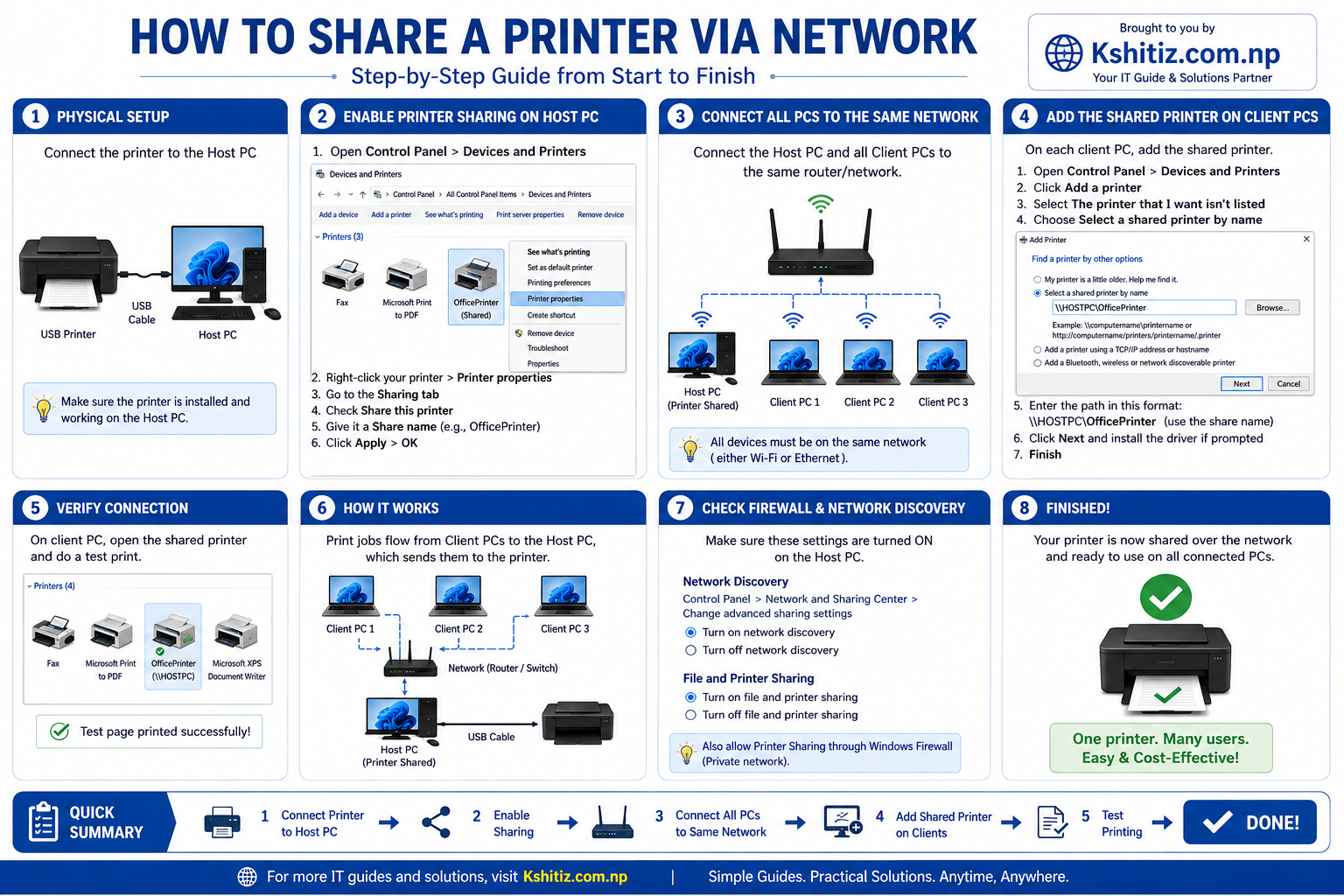
Connect the printer to the host computer using a USB cable or install it as a network printer. Ensure the printer is installed correctly and can print a test page.
- Open Control Panel → Devices and Printers.
- Right-click your printer and select Printer Properties.
- Open the Sharing tab.
- Check Share this printer.
- Enter a share name (for example: OfficePrinter).
- Click Apply and OK.
Ensure the host computer and all client computers are connected to the same Wi-Fi network or Ethernet network.
On each client computer:
- Open Control Panel → Devices and Printers.
- Click Add a printer.
- Select The printer that I want isn't listed.
- Choose Select a shared printer by name.
- Enter the printer path (for example:
\\HOSTPC\OfficePrinter). - Install the printer driver if prompted.
Print a test page from each client computer to verify that the printer is accessible and working correctly.
- Make sure the host computer is powered on.
- Enable Network Discovery and File and Printer Sharing.
- Allow printer sharing through the Windows Firewall.
- Confirm all devices are connected to the same network.
- Verify that the correct printer drivers are installed.
By following these steps, you can successfully share a printer across your network, allowing multiple users to print efficiently from a single device. This setup is reliable, cost-effective, and easy to maintain.
For more IT tutorials, networking guides, and troubleshooting tips, visit Kshitiz.com.np.