







Microsoft 365 Setup: Complete Step-by-Step Guide from Beginning to End
Table of Contents
- Microsoft 365 Setup: Complete Guide from Beginning to End
- 1. Check the System Requirements
- 2. Create or Sign In to a Microsoft Account
- 3. Purchase or Activate Microsoft 365
- 4. Open the Microsoft 365 Portal
- 5. Download Microsoft 365 Apps
- 6. Run the Installer
- 7. Wait for the Installation to Complete
- 8. Open a Microsoft 365 Application
- 9. Sign In to Activate Microsoft 365
- 10. Verify Your Subscription
- 11. Set Up OneDrive
- 12. Install Microsoft 365 on Other Devices
- 13. Install Microsoft 365 Mobile Apps
- 14. Keep Microsoft 365 Updated
- 15. Manage Your Microsoft 365 Subscription
- 16. Common Microsoft 365 Activation Problems
- 17. Microsoft 365 Is Ready to Use
- Need Website or Digital Support?
Microsoft 365 gives users access to popular productivity applications such as Word, Excel, PowerPoint, Outlook, OneNote, Teams, and OneDrive. Setting it up is simple when you follow the correct steps.
In this guide, we explain how to install, activate, and configure Microsoft 365 on your computer from beginning to end.
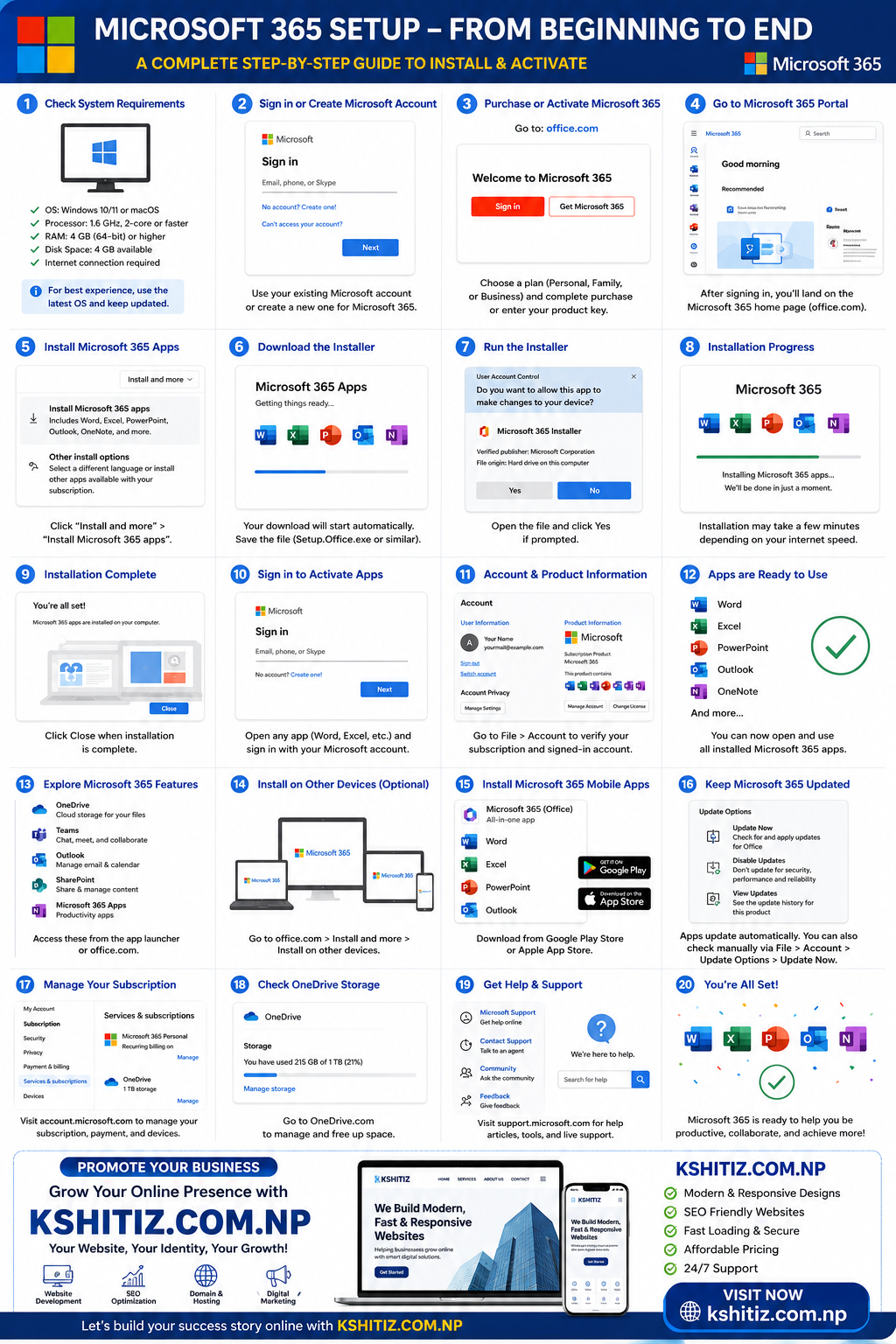
Before installing Microsoft 365, make sure your computer meets the basic requirements.
- Windows 10, Windows 11, or a supported version of macOS
- At least 4 GB of RAM
- Approximately 4 GB of available storage
- A stable internet connection
- A Microsoft account
For better performance and security, keep your operating system updated.
You need a Microsoft account to purchase, install, and activate Microsoft 365.
Go to the official Microsoft 365 website and sign in using your email address, phone number, or Skype account. If you do not have an account, create a new one.
Choose the Microsoft 365 plan that suits your needs. Available plans may include Personal, Family, Business, or organisation-based subscriptions.
If you already have a product key, enter it through your Microsoft account to activate the subscription.
After signing in, open the Microsoft 365 home page. From this dashboard, you can access online applications, recent documents, OneDrive files, account settings, and installation options.
On the Microsoft 365 home page, select the installation option and choose Install Microsoft 365 apps.
The installer file will begin downloading automatically. The downloaded file may appear as OfficeSetup.exe, Setup.Office.exe, or a similar name.
Open the downloaded installer file. Windows may display a User Account Control message asking whether you want to allow the application to make changes to your device.
Select Yes to continue.
The Microsoft 365 installer will download and install applications such as:
- Microsoft Word
- Microsoft Excel
- Microsoft PowerPoint
- Microsoft Outlook
- Microsoft OneNote
- Microsoft Teams
The installation time depends on your internet speed and computer performance. Keep your computer connected to the internet during the process.
After installation, open the Windows Start menu and search for Word, Excel, PowerPoint, or another Microsoft 365 application.
Select the application to launch it.
When you open a Microsoft 365 application for the first time, you may be asked to sign in.
Use the same Microsoft account connected to your Microsoft 365 subscription. Once signed in, the applications should activate automatically.
To confirm that Microsoft 365 is activated, open Word or Excel and follow these steps:
- Click File.
- Select Account.
- Check the Product Information section.
The page should display your Microsoft 365 subscription and show that the product is activated.
OneDrive allows you to save files online and access them from different devices.
Sign in to OneDrive using your Microsoft account and choose the folders you want to synchronise. You can save documents directly from Word, Excel, and PowerPoint to OneDrive.
Depending on your subscription, you may be able to install Microsoft 365 on multiple computers, tablets, and mobile phones.
Sign in to your Microsoft account on the other device and download the applications from the official Microsoft 365 portal.
Microsoft 365 applications are available for Android and iOS devices.
You can install Word, Excel, PowerPoint, Outlook, OneDrive, Teams, or the Microsoft 365 mobile application from the Google Play Store or Apple App Store.
Microsoft 365 applications usually update automatically. You can also check for updates manually.
- Open Word or Excel.
- Go to File.
- Select Account.
- Click Update Options.
- Select Update Now.
Regular updates provide security improvements, bug fixes, and new features.
You can manage your subscription through your Microsoft account. From the subscription page, you can:
- Check the renewal date
- Update payment details
- View active devices
- Change or cancel your subscription
- Install Microsoft 365 on another device
If Microsoft 365 asks you to activate even after installation, try the following:
- Confirm that you are signed in with the correct Microsoft account.
- Check whether your subscription is active.
- Restart your computer.
- Update Microsoft 365.
- Remove older or unofficial Office installations.
- Run Microsoft’s official support and recovery tools.
Avoid downloading Microsoft Office from unknown or unofficial websites. Such files may contain malware, modified software, or invalid activation tools.
After installation and activation, you can start using Word, Excel, PowerPoint, Outlook, OneDrive, Teams, and other Microsoft 365 services.
Save important files to OneDrive, enable two-step verification on your Microsoft account, and keep your applications updated for better security.
Kshitiz.com.np provides modern digital solutions for individuals, professionals, and businesses.
- Website design and development
- Responsive and mobile-friendly websites
- Search engine optimisation
- Domain and hosting support
- Website maintenance
- Digital marketing services
Visit kshitiz.com.np to learn more about our services and grow your online presence.